Make sure you have the following before you begin.
Select your operating system to see the matching instructions.
macOS Installation via npm
Open Terminal
Press Cmd + Space, type Terminal, and press Enter.
Check your Node.js version
Run the command below. You need version 18 or higher.
node --versionInstall Claude Code globally via npm
npm install -g @anthropic-ai/claude-codesudo with this command. Using sudo npm install -g can cause permission issues and security risks.
Authenticate
Run claude for the first time. It will open your browser for a one-time sign-in.
Log in with your Claude.ai account (Pro or Max plan).
Verify the installation
claude doctorclaude doctor checks your installation type, version, and connectivity. All items should show green.
Launch Claude Code in your project
cd your-project-folder
claudeWindows Installation via Command Prompt
Open Command Prompt
Press Win, type cmd, and click Open.
Check your Node.js version
You need version 18 or higher.
node --versionInstall Claude Code globally via npm
npm install -g @anthropic-ai/claude-codeAuthenticate
Run claude for the first time. Your default browser will open for sign-in.
Log in with your Claude.ai account.
Verify the installation
claude doctorclaude doctor checks your installation type, version, and connectivity. All items should show green.
Launch Claude Code in your project
cd your-project-folder
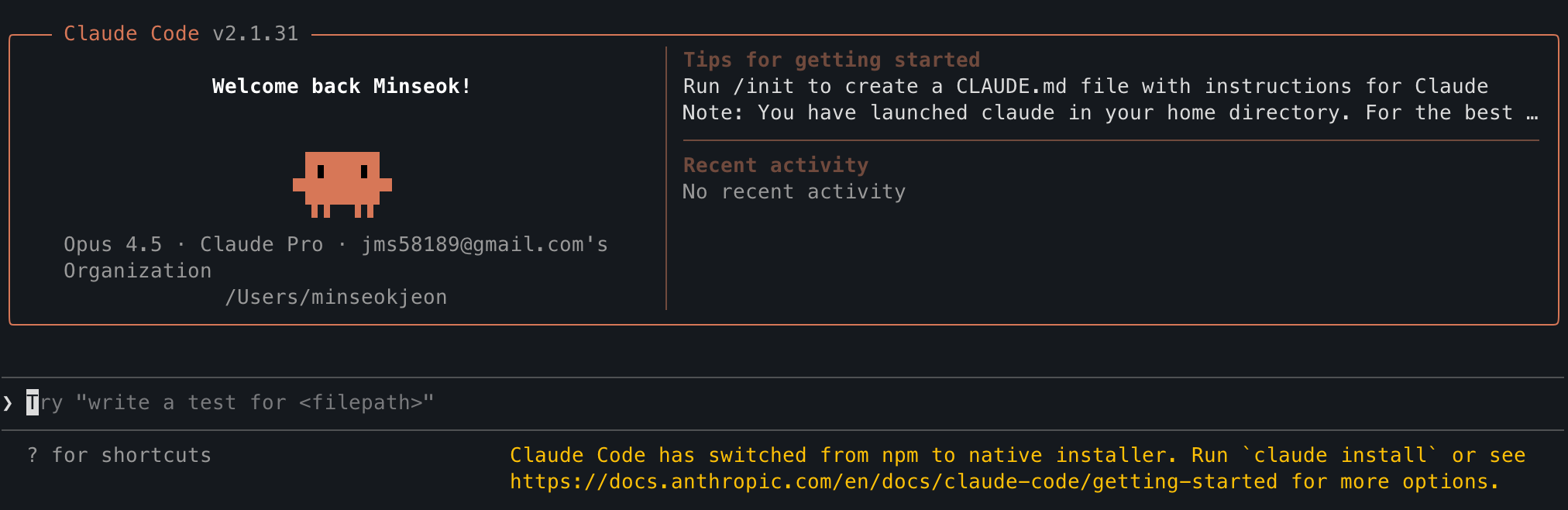
claudeAfter running claude, your terminal will display the Claude Code interface.
Useful commands after installation.
| Command | What it does |
|---|---|
claude |
Start Claude Code in the current directory |
claude doctor |
Check installation health and version |
claude update |
Manually update to the latest version |
claude --help |
Show all available options |
/help |
In-session help (after claude is running) |